

The first commit pushed to mag37/dockcheck was back in January 2023. It all began with no real objective, just a spark of curiosity: Could I generate a list of Docker containers with available updates without the overhead of pulling the images first?
Fast forward to now – almost three years later – and what started as a proof of concept has steadily gathered momentum and outgrown/evolved far beyond what I had originally envisioned.
Behind the scenes, I’m not a developer – I’m a self-taught sysadmin. Development and coding is always prioritized after family, gardening, and mountain biking. I also value simplicity, which has meant keeping the core of dockcheck as intuitive and minimal as possible. Anyone can just grab the script and just run it – no frills, no fuss.
But thanks to the community’s invaluable input, ideas, suggestions and patches, the project has grown into something more feature-rich and adaptable than I could have imagined.
Let’s dig in and explore the various ways one can configure dockcheck to improve their update workflow.
Getting Started
dockcheck requires a few dependencies, most of which will be prompted upon initial run if missing from your system:
- Docker (and Docker Compose)
- bash (or compatible shell)
- curl
- jq (dockcheck will help you install it)
- regctl (dockcheck will help you install it)
To install dockcheck, you can git clone (recommended if using notifications) or download it, or place the dockcheck.sh file somewhere in your $PATH – for example, ~/.local/bin/:
curl -L https://raw.githubusercontent.com/mag37/dockcheck/main/dockcheck.sh -o ~/.local/bin/dockcheck.sh
chmod +x ~/.local/bin/dockcheck.sh
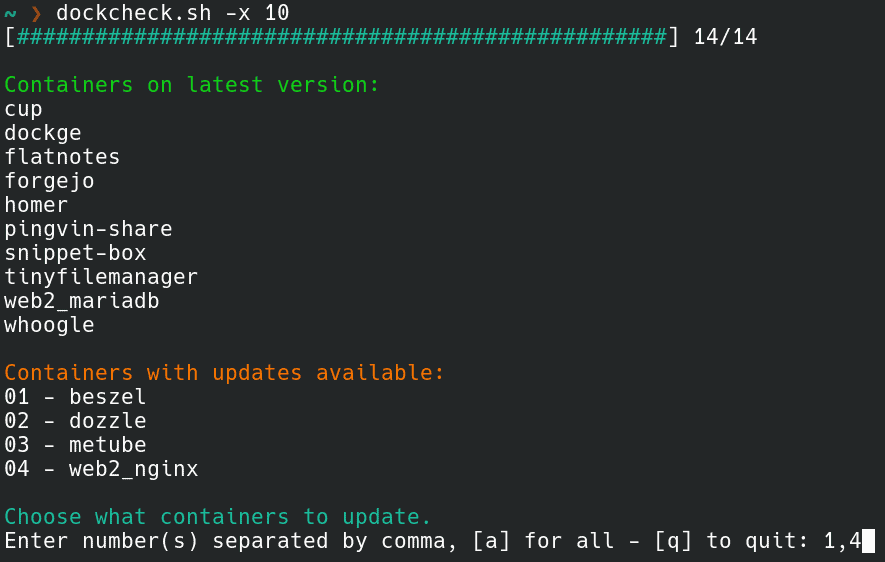
Running dockcheck.sh will then process your running containers and output a list of updates with options for selecting individual, all, or no containers – which will automatically be updated after hitting enter.
But these are just the basics. Power users can do so much more with just a bit of tinkering...
Available Options
There are a variety of flags to pass through to the dockcheck.sh command (immediately and always available):
-x N
Set max asynchronous (parallel) sub-processes, or the number of simultaneous updates dockcheck processes (greatly increasing the speed for checks). 1 for default, 0 to disable, 32+ tested.
The example below will check ten images at a time instead of one (the default):
dockcheck.sh -x 10-a or -y
These flags allow for automatic updates without interaction – meaning the script will automatically process all available updates without pausing for user selection.
-n
No updates, only check update availability. The opposite of -a, this will check for updates but not pull or install them.
-e X
Exclude containers (comma separated). Use this to list containers you don't want to process, for example:
dockcheck.sh -e homer,nginx-i
Inform, or send a preconfigured notification with available updates. This is probably the most extensive option and requires some configuration, which we'll cover later.
Configuration
dockcheck can be configured either by option flags or by a configuration file (some options, like notifications, require the config file). Option flags will always override the config file.
To setup the config file, copy default.config to dockcheck.config alongside the main script, then uncomment and edit the options you'd like to configure. Alternatively, create dockcheck.config and add only the values (from default.config) you'd like to modify.
As an example:
Timeout=3    # Set a timeout (in seconds) per container for registry checkups.
MaxAsync=20    # Set max asynchronous subprocesses, 1 default, 0 to disable.
AutoPrune=true    # Auto-Prune dangling images after update.
Notifications
Notifications were previously configured by copying a template file and modifying it to fit your setup. Recently, it was updated to be handled by a wrapper script, which allows configuring multiple notification "channels" by triggering the (unmodified) template scripts with predefined settings.
Notifications settings are configured through the dockcheck.config file. The following example would activate both Matrix and Telegram notifications:
### Notify settings
## All commented values are examples only. Modify as needed.
##
## Uncomment the line below and specify the notification channels you wish to enable in a space separated string
NOTIFY_CHANNELS="matrix telegram"

MATRIX_ACCESS_TOKEN="AAABBBCCC123"
MATRIX_ROOM_ID="!XXXYYYYZZZ123:matrix.org"
MATRIX_SERVER_URL="https://matrix.org"

TELEGRAM_CHAT_ID="-123456789"
TELEGRAM_TOKEN="AAAABBBCCC:123-321_xyz"
TELEGRAM_TOPIC_ID="0"
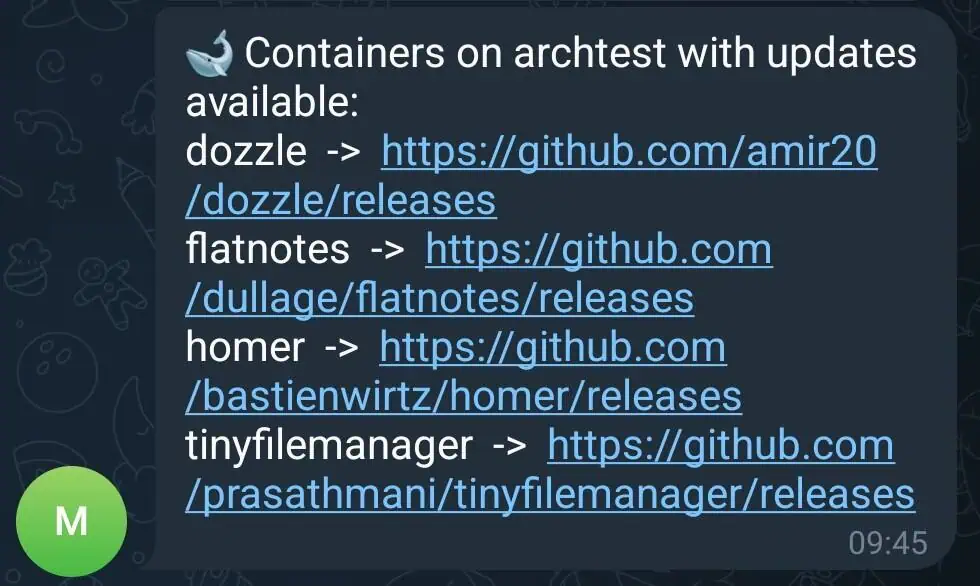
After configuration, running dockcheck.sh -n -i will run checks and send a notification to each channel with the list of containers and available updates. Adding the -n flag ensures it won't update any containers – just check and exit (perfect for executing via cron!).
To enrich notifications with project URLs and easy-to-read release notes, copy or symlink the file notify_templates/urls.list alongside the main script:
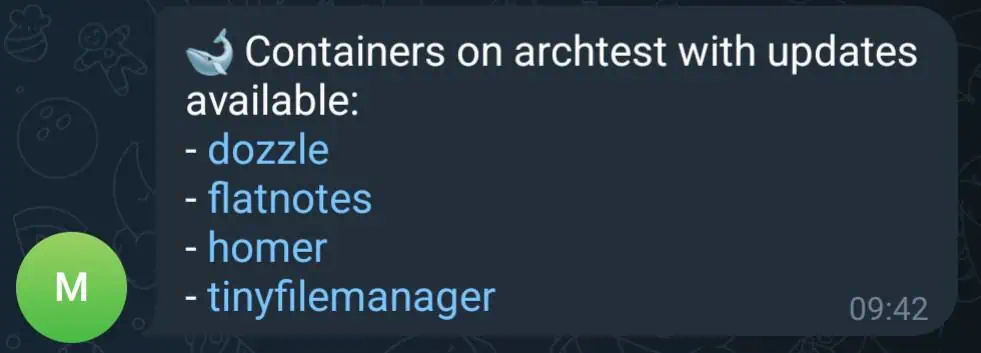
Addtionally, use the -M option to format notifications with Markdown (currently not supported for all notification services):
Labels
It's also possible to control portions of the flow via Docker Compose labels:
    labels:
      mag37.dockcheck.update: true
      mag37.dockcheck.only-specific-container: true
      mag37.dockcheck.restart-stack: true
- .update is used to manage which containers can be updated when run with the -l flag
- .only-specific-container will target a specific container within a compose file
- .restart-stack will restart the entire compose stack (run this with caution, as this is repeated on every updated container within the stack when run)
Real World Example
Let's assume we have three machines running Docker Compose containers.
Server A runs important infrastructure, so I want updates but I'd also like to choose when and what to update to account for potential breaking changes. I'd set a daily cron job to send a notification with a list of all containers with available updates:
0 15 * * * dockcheck.sh -ni
Server B is running simple web facing services. I'd like them to remain as up-to-date as possible without too much worry about breakage, with the exception of a VPN container.
In this example, I'd use two jobs – one to exclude the VPN container and auto-update the rest nightly, and another to check only the VPN container and send me a notification if an update is available:
0 01 * * * dockcheck.sh -y -e vpn_123
0 15 * * * dockcheck.sh -ni vpn_123
Server C is a backup server with a few slow moving (required to be stable) containers. This job should run weekly each Sunday to auto-update all containers with updates older than 5+ days (to stagger until a release is untouched for at least 5 days) and notify me:
0 15 * * sun dockcheck.sh -yi -d 5
Plugins and Integrations
There are a few plugins and integrations created by the community for integrating dockcheck with other services. I'm very grateful to the users contributing these integrations as I can't possible foresee every possible use case!
Below is a brief list, and more can be found in the project's README:
- DSM: A user guide on configuring notifications on Synology DSM Container Manager GUI
- Prometheus & node_exporter: A plugin to output a file for the file collector, with examples and a reference Grafana dashboard
- Zabbix: List the number of available Docker image updates on host
- REST API: A custom Python script that serves a REST API to pull into other services for update monitoring
- Unraid: A wrapper script to run dockcheck as a User Script on Unraid
Wrapping Up
When I committed the first few lines of code, I couldn't have imagined it would grow to what it is today, I just wanted to prove a point. But immediately some users chimed in, asking, "What if it could do this, too?" – and it grew from there!
I’m deeply humbled by the community. Many users don’t write code but offer invaluable feedback on documentation or spark ideas for the future. Others dive in to fix bugs they stumble upon. And many simply use dockcheck and share their insights, test new features, and push back when needed to help shape the project before each release goes live.
There are certainly more changes to come. A containerized version is slowly in the works (when life allows for it) and the next upcoming release will bring image-backups to easily restore if a new image breaks.
It’s been an interesting and fulfilling journey so far, and I hope it will continue to evolve and give me (and others) the courage to put our projects out there.